> ## Documentation Index
> Fetch the complete documentation index at: https://docs.aseed.ai/llms.txt
> Use this file to discover all available pages before exploring further.
# Quick Start: First Project
> Create a project, prepare AI interviews, add recordings, and generate a shareable report in minutes.
Use this quick start to create your first project report.
## Outcome
* A project with interviews and transcripts
* Single reports for each interview
* A project report ready to share
## Steps
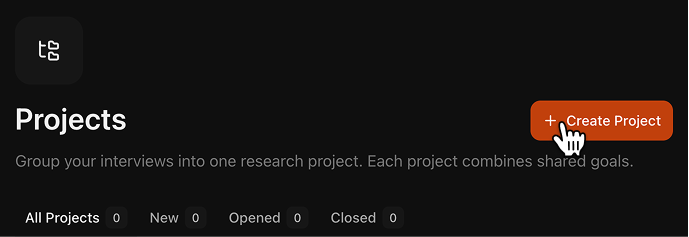
Click **Create Project** in your workspace and name the study.

 Define your **Research Goals** and **Interview Guide** in the same setup step.
Use the **Research Assistant** to generate both through guided Q\&A, or fill both fields manually.
Define your **Research Goals** and **Interview Guide** in the same setup step.
Use the **Research Assistant** to generate both through guided Q\&A, or fill both fields manually.

 Clear goals and a clear guide lead to sharper interviews and better reports.
Open **AI Interviewer** in the project, create links, and send one link to each respondent.
**Learn more:** [AI Interviewer](/projects/ai-interviewer)
Add past interviews from outside Aseed (audio, video, or text) in **Project Records**.
Clear goals and a clear guide lead to sharper interviews and better reports.
Open **AI Interviewer** in the project, create links, and send one link to each respondent.
**Learn more:** [AI Interviewer](/projects/ai-interviewer)
Add past interviews from outside Aseed (audio, video, or text) in **Project Records**.

 Generate transcripts for audio/video files. Review and edit transcripts as needed.
**Learn more:** [Transcribe interviews](/interviews/transcribe) and [Edit transcripts](/interviews/edit)
Click **Generate Reports** and start with **Transcript** and **Q\&A** for each interview. See [Report types](/reports/report-types) to understand what each report contains.
These reports become the base material for your project report.
Click **Add Report**, choose a preset or custom structure, and generate the report.
Generate transcripts for audio/video files. Review and edit transcripts as needed.
**Learn more:** [Transcribe interviews](/interviews/transcribe) and [Edit transcripts](/interviews/edit)
Click **Generate Reports** and start with **Transcript** and **Q\&A** for each interview. See [Report types](/reports/report-types) to understand what each report contains.
These reports become the base material for your project report.
Click **Add Report**, choose a preset or custom structure, and generate the report.

 After you have the reports you need, use **Ask Project** in the [Research Assistant](/projects/context): select your project and ask questions to clarify or interpret findings. Answers are grounded in your project documents with citations.
Share a public link or export the report.
## Next steps
Learn how Aseed differs from general AI assistants.
See the full workflow and links to detailed guides.
Need help? Email [team@aseed.ai](mailto:team@aseed.ai).
After you have the reports you need, use **Ask Project** in the [Research Assistant](/projects/context): select your project and ask questions to clarify or interpret findings. Answers are grounded in your project documents with citations.
Share a public link or export the report.
## Next steps
Learn how Aseed differs from general AI assistants.
See the full workflow and links to detailed guides.
Need help? Email [team@aseed.ai](mailto:team@aseed.ai).